Connecting Your Account
Connecting your broker account to Arconomy involves authorising access through your cTrader ID and then configuring the FIX API connection credentials. This guide walks you through the entire process step by step.
Before You Begin
Before starting the connection process, make sure you have the following:
- An active Arconomy subscription — you need a Paper Trading subscription to connect demo accounts, or a Pro Trader subscription to connect live accounts. See Plans & Pricing for details.
- A broker account with cTrader — your broker must offer a cTrader account. See Supported Brokers for a list of compatible brokers.
- A cTrader ID — this is the account you use to log in at id.ctrader.com. It is separate from your broker account credentials.
Your cTrader ID is different from your broker account credentials. Your cTrader ID is the email and password you use to log in at id.ctrader.com, while your broker credentials are the ones you use to log in to your broker's web portal. The connection process requires both.
Step-by-Step Connection Guide
Follow these steps to connect your broker account to Arconomy.
Step 1: Start from the Dashboard
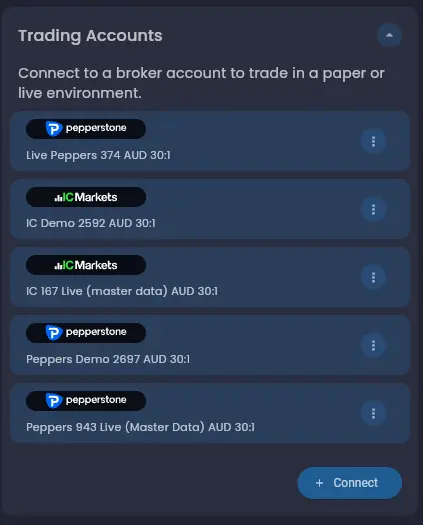
Log in to your Arconomy dashboard. In the Trading Accounts card, click the Connect button to begin adding a new broker connection.
Step 2: Select Your Broker
On the account connections screen, select the broker you want to connect to from the list of available brokers.

Step 3: Authorise with cTrader ID
After selecting your broker, you will be redirected to the cTrader authorisation page at id.ctrader.com. Log in with your cTrader ID credentials and allow access to the broker account you want to connect.
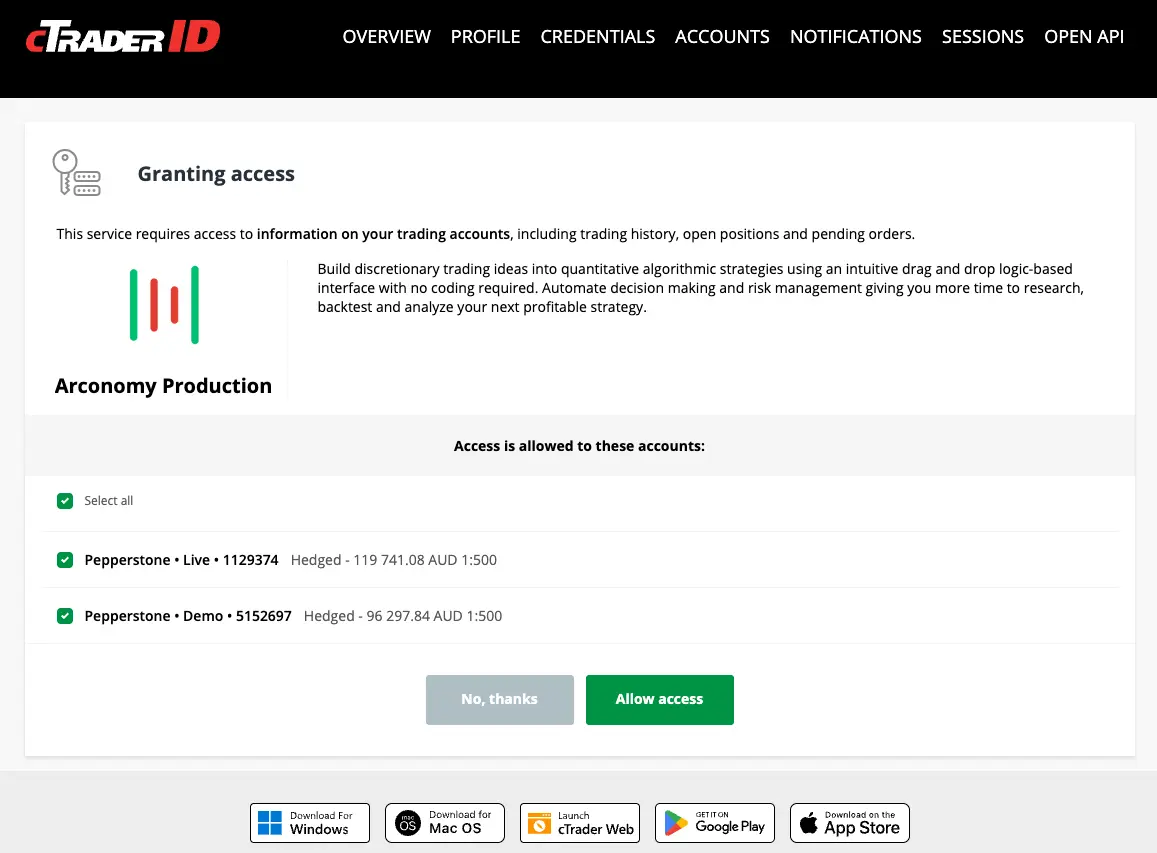
Once you authorise access, you will be redirected back to the Arconomy account credentials screen.
Step 4: Get Your FIX API Credentials from cTrader
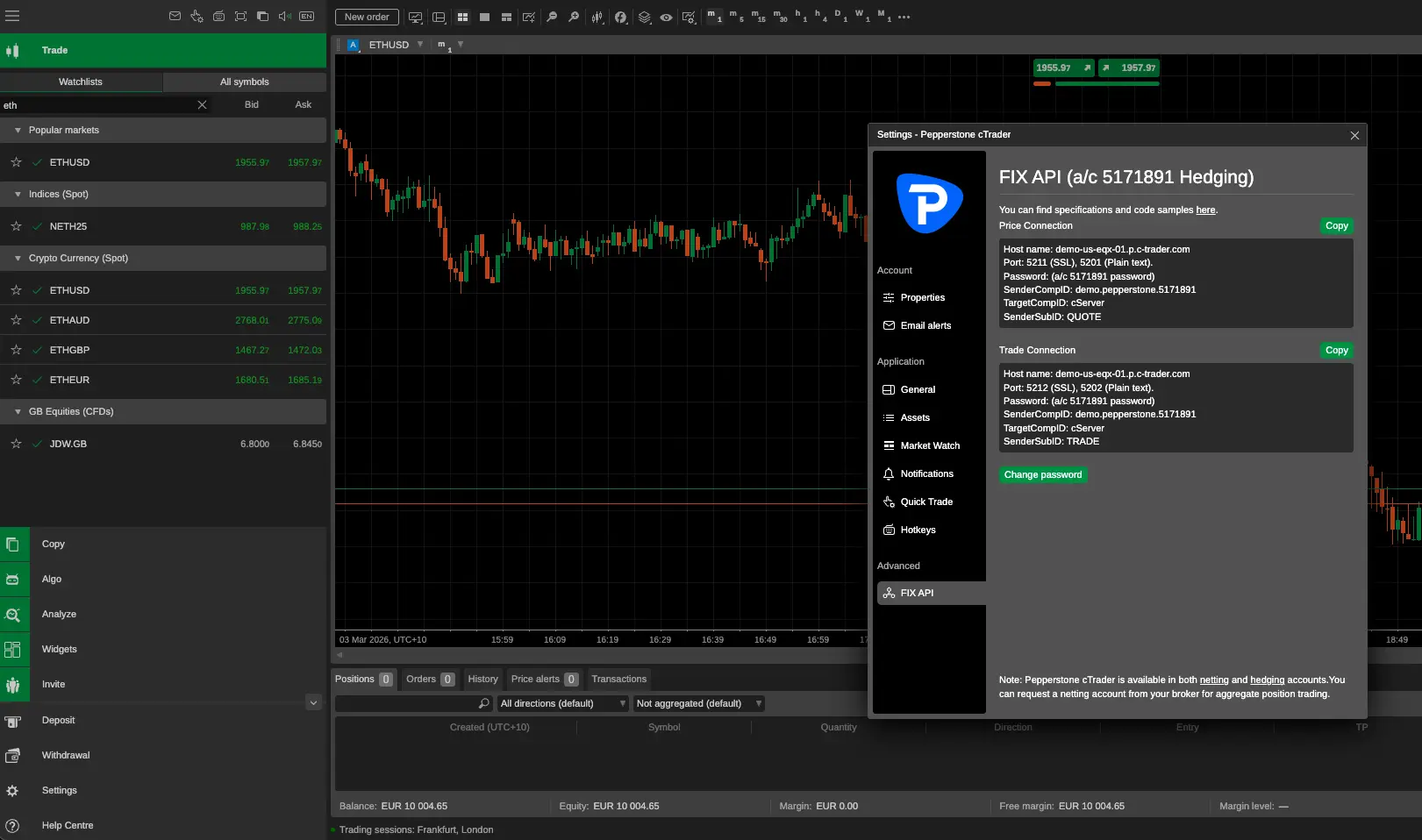
In a separate browser tab, log in to your broker's cTrader web application (for example, ct.pepperstone.com for Pepperstone accounts). Navigate to Settings and then FIX API.
On the FIX API settings page:
- Change the FIX API password and save it — you will need to enter this password into Arconomy.
- Note the Price connection configuration (host and port).
- Note the Trade connection configuration (host and port).
Step 5: Enter Connection Details in Arconomy
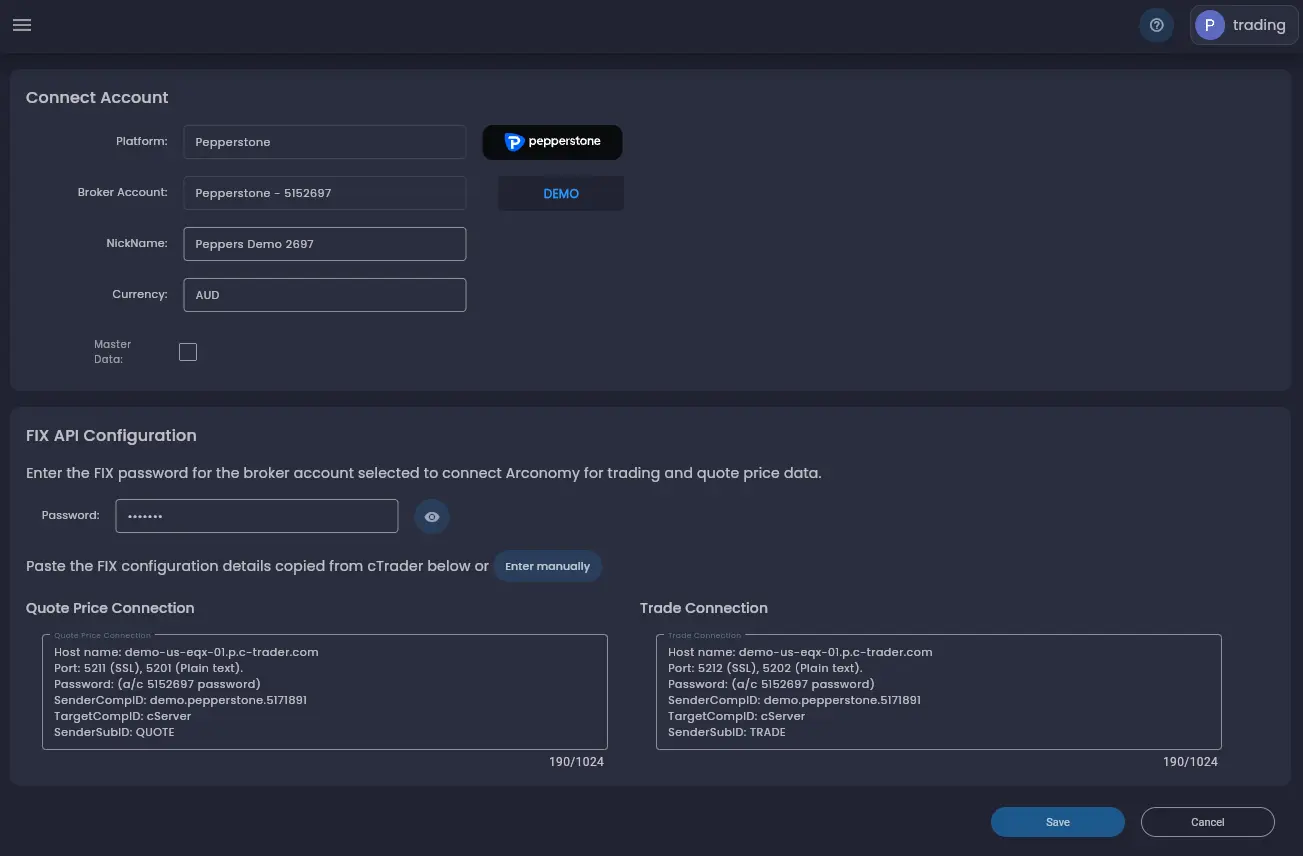
Back on the Arconomy account credentials screen, enter the connection details you copied from cTrader:
- Copy and paste the Price connection configuration from the cTrader FIX API page into the corresponding section in Arconomy.
- Copy and paste the Trade connection configuration from the cTrader FIX API page into the corresponding section in Arconomy.
- Enter the FIX API password you set in the previous step into the password field.
Step 6: Save and Verify
Click Save. Arconomy will test the connection by attempting to connect to your broker using the credentials you provided. If the connection is successful, you will be redirected back to the dashboard where you can see the newly connected account in the Trading Accounts card.
If the connection fails, check that:
- The Price and Trade connection details were copied correctly from cTrader.
- The FIX API password matches what you set in the cTrader FIX API settings.
- Your cTrader account has FIX API access enabled.
Subscription Requirements
The type of broker account you can connect depends on your Arconomy subscription:
- Paper Trading — connect demo broker accounts for paper trading with virtual funds.
- Pro Trader — connect live broker accounts for trading with real capital. Demo account connections are also available.
Visit Plans & Pricing for full details on each subscription tier, or see Demo vs Live Accounts to understand the differences between account types.
Credential Verification on Deployment
Whenever you deploy a strategy to a connected broker account, Arconomy checks the account credentials to ensure they are still valid before the strategy begins executing. This verification happens automatically each time a strategy is deployed, so you do not need to manually check the connection status beforehand.
If the credentials are no longer valid — for example, because you changed your FIX API password in cTrader — the deployment will not proceed until the credentials are updated in Arconomy.
Connecting Multiple Accounts
You can connect as many broker accounts as you want to Arconomy. Each account is connected independently using the same process described above. You can use connected accounts in different strategies, or connect multiple accounts to the same strategy if you want to trade with multiple accounts simultaneously.
See Managing Multiple Accounts for more on working with multiple connections.
Updating Your Credentials
If you change your FIX API password or connection details in cTrader, you will need to update the stored credentials in Arconomy:
- Navigate to the account connection you want to update.
- Enter the new connection details or password.
- Click Save to verify and apply the changes.
Disconnecting an Account
To disconnect a broker account from Arconomy, navigate to the account connection and remove it. Any strategies currently deployed to the account will need to be stopped first. Open positions on your broker account are not affected — they remain open and must be managed directly through your broker's cTrader platform.
Was this helpful? Let us know